Xcode9的一些问题

Xcode9 的正式版也使用了一段时间了,bug 还是有点多的,总感觉好像是赶工出来的版本,刚开始用的时候还是有点痛苦的,下面就把这些点列出来,大家可以参考一下。

BUG

1.APP 图标不见了

用 Xcode9 跑起来工程之后发现应用图标不见了,这个是因为 CocoaPods 的资源脚本有点问题,在 Xcode9 上资源位置异常,工程引用不到,解决方案是在 Podfile 添加如下 hook 代码

1
2
3
4
5
6
7
8
9
10
11
12
13
14
15
16
17
18
19
20
post_install do |installer|
copy_pods_resources_path = "Pods/Target Support Files/Pods-[工程名]/Pods-[工程名]-resources.sh"
string_to_replace = '--compile "${BUILT_PRODUCTS_DIR}/${UNLOCALIZED_RESOURCES_FOLDER_PATH}"'
assets_compile_with_app_icon_arguments = '--compile "${BUILT_PRODUCTS_DIR}/${UNLOCALIZED_RESOURCES_FOLDER_PATH}" --app-icon "${ASSETCATALOG_COMPILER_APPICON_NAME}" --output-partial-info-plist "${BUILD_DIR}/assetcatalog_generated_info.plist"'
text = File.read(copy_pods_resources_path)
new_contents = text.gsub(string_to_replace, assets_compile_with_app_icon_arguments)
File.open(copy_pods_resources_path, "w") {|file| file.puts new_contents }
end

# 如果有多个TARGETS,遍历执行即可
post_install do |installer|
installer.aggregate_targets.each do |target|
copy_pods_resources_path = "Pods/Target Support Files/Pods-[工程名]/Pods-[工程名]-resources.sh"
string_to_replace = '--compile "${BUILT_PRODUCTS_DIR}/${UNLOCALIZED_RESOURCES_FOLDER_PATH}"'
assets_compile_with_app_icon_arguments = '--compile "${BUILT_PRODUCTS_DIR}/${UNLOCALIZED_RESOURCES_FOLDER_PATH}" --app-icon "${ASSETCATALOG_COMPILER_APPICON_NAME}" --output-partial-info-plist "${BUILD_DIR}/assetcatalog_generated_info.plist"'
text = File.read(copy_pods_resources_path)
new_contents = text.gsub(string_to_replace, assets_compile_with_app_icon_arguments)
File.open(copy_pods_resources_path, "w") {|file| file.puts new_contents }
end
end

2.替换或者新添加文件时工程找不到文件

具体表现为报错symbol(s) not found for architecture x86_64,这个是 Xcode9 没有在我们添加文件时将相关文件添加到编译配置当中,只需要在工程->TARGETS->Build Phases->Compile Sources 当中手动添加进去即可

3.打包导出(Export)失败

表现为点击 Xcode 的导出(Export)时提示The data couldn’t be read because it isn’t in the correct format.或者使用 Jenkins 等用脚本打包提示如下错误:

1
2
3
4
2017-10-20 11:42:44.254 xcodebuild[6983:599869] [MT] IDEDistribution: Step failed: <IDEDistributionSigningAssetsStep: 0x7fa541fd34a0>: Error Domain=IDEDistributionSigningAssetStepErrorDomain Code=0 "Locating signing assets failed." UserInfo={NSLocalizedDescription=Locating signing assets failed.,
IDEDistributionSigningAssetStepUnderlyingErrors=(
"Error Domain=IDEProvisioningErrorDomain Code=9 \"\"PrePublish.app\" requires a provisioning profile with the Push Notifications feature.\" UserInfo={NSLocalizedDescription=\"PrePublish.app\" requires a provisioning profile with the Push Notifications feature., NSLocalizedRecoverySuggestion=Add a profile to the \"provisioningProfiles\" dictionary in your Export Options property list.}"
)}

原因是 Xcode9 帮你添加了一个Code Signing Style的配置字段,该字段需要和Automatically manage signing对应,使用Automatically manage signing时该字段的值需要为Automatic,不使用Automatically manage signing时该字段的值需要为Manual,上述错误就是因为配置不对应导致的,修改对应即可。

易用性

1.主题

部分经典主题在 Theme 列表看不到,只需要点击 theme 列表下面的“+”号即可添加,具体位置为 Xcode->Preferences->Fonts & Colors->左侧 Theme->“+”

2.移除模拟器边框

取消勾选 Simulator->Window->Show Device Bezels

3.单击跳转方法定义

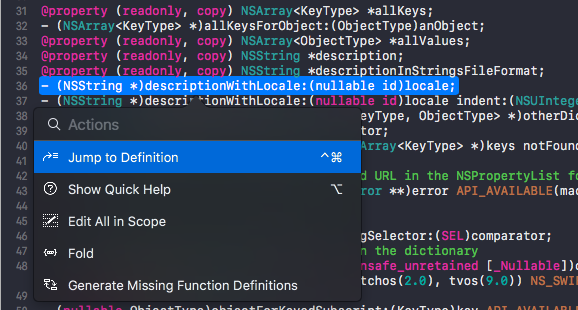
Xcode9 给“cmd+单击”添加了一个菜单选项,可以提供更多操作,如下:
20171011-1

如果我们想直接跳转到方法定义,我们可以直接“cmd+鼠标右键”,触摸板是“cmd+双指轻击”

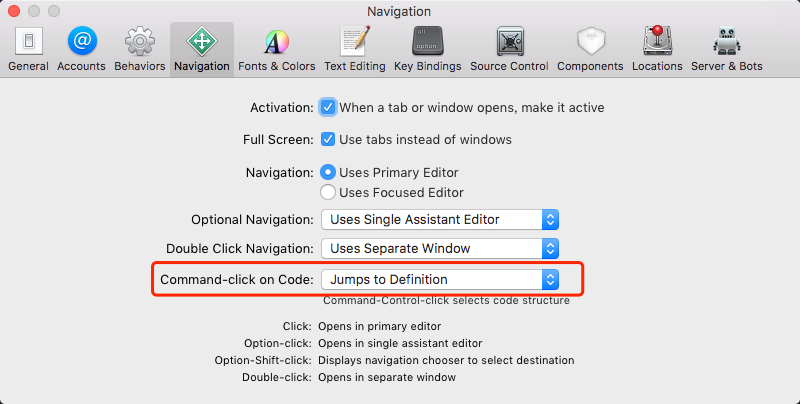
如果还是习惯原来的“cmd+单击”的方式,也可以在 Xcode->Preferences->Navigation->Command-click on Code 中将选项修改为 Jumps To Definition,这样“cmd+单击”就是直接跳转到代码定义了。
20171011-3